Pre-release Product Overview

Public desktop installers, credit pack pricing, and live billing policies are being finalized ahead of commercial launch. No checkout or payment is active on this page.

Native Rust Desktop App Local Editing + Optional Cloud AI

Layered desktop image editing with integrated AI tools

YoFan Studio combines a local, layer-based raster and adjustment workflow with optional account-based cloud AI image generation and editing—returning generated results directly into your active document as editable layers or new canvases.

Core editing
Runs locally on your machine without an account
Cloud AI & account
Integrated YoFan Studio · AI & Account service via top-bar AI / Account & canvas selection bar
Current status
Pre-release build · Commercial checkout not yet enabled
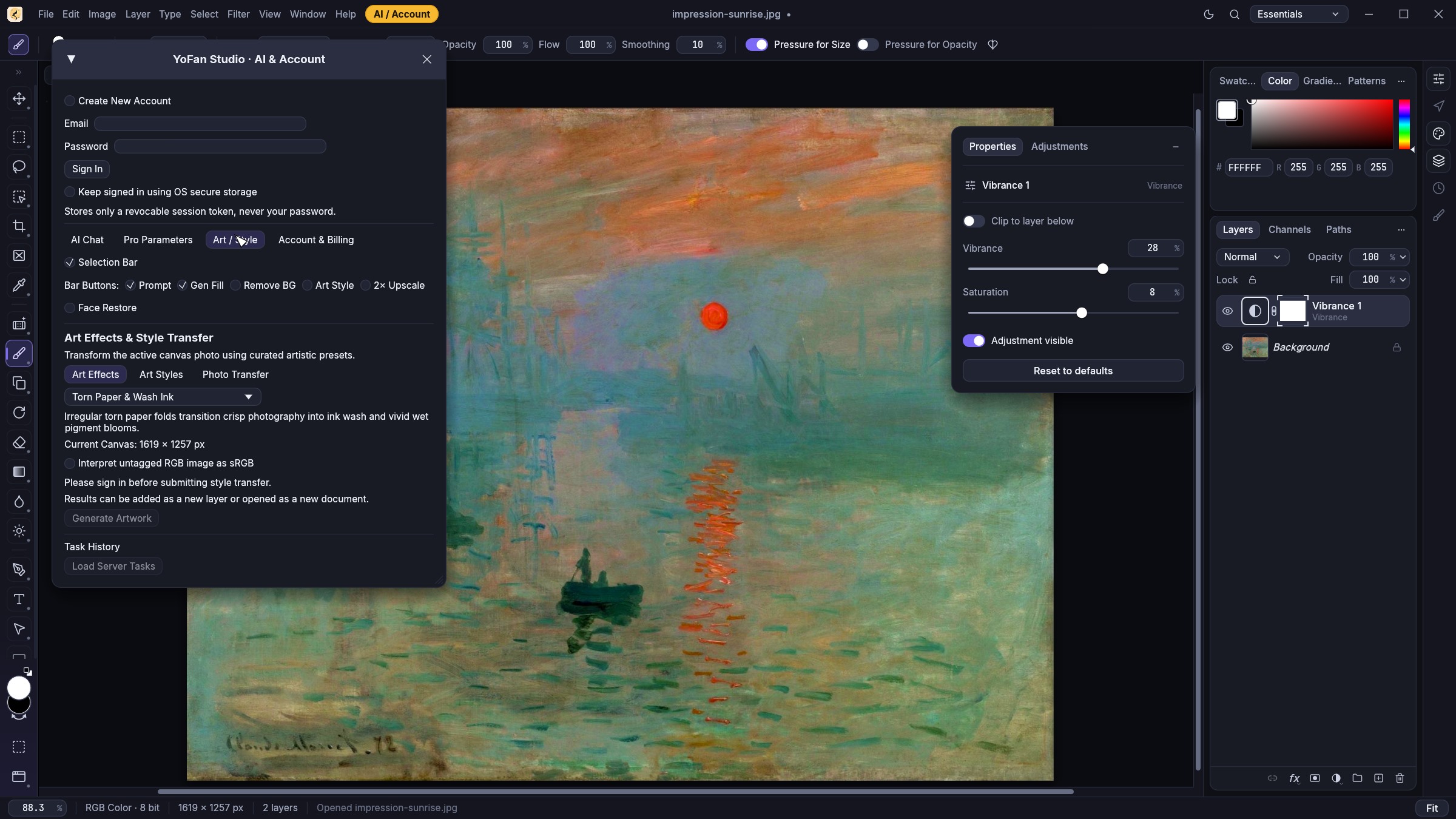
Current YoFan Studio Studio Dark workspace editing Claude Monet's Impression, Sunrise, showing the top-bar AI / Account button, an active elliptical selection with the Floating Contextual Selection AI Bar, the floating Properties card with an interactive RGB Curves histogram, and Curves and Vibrance adjustment layers.
Current YoFan Studio Studio (Dark) workspace: Active layered edit on Claude Monet's Impression, Sunrise (1872, public domain) featuring the top-bar AI / Account launcher, an active elliptical selection with the Floating Contextual Selection AI Bar (Gen Fill), the floating Curves 1 RGB histogram card, and non-destructive Curves 1 + Vibrance 1 adjustment layers.
Capabilities

What you can do with YoFan Studio

YoFan Studio separates local editing from cloud-assisted generation so you can retouch, mask, and composite locally while invoking cloud AI tasks only when needed.

01 · Local Editing Engine

Layered editing & selections

Build complex compositions using non-destructive layers, layer masks, blend modes, and colour adjustments. Make precise rectangular, elliptical, lasso, or feathered selections to isolate the exact region you want to adjust or fill.

  • Multi-layer compositing with layer masks, opacity, and blend controls
  • Non-destructive adjustment layers including Levels, Curves, Hue/Saturation, and Vibrance
  • Interactive floating Properties card with live RGB Curves & histogram controls
  • Floating Contextual Selection AI Bar appears automatically below active canvas selections
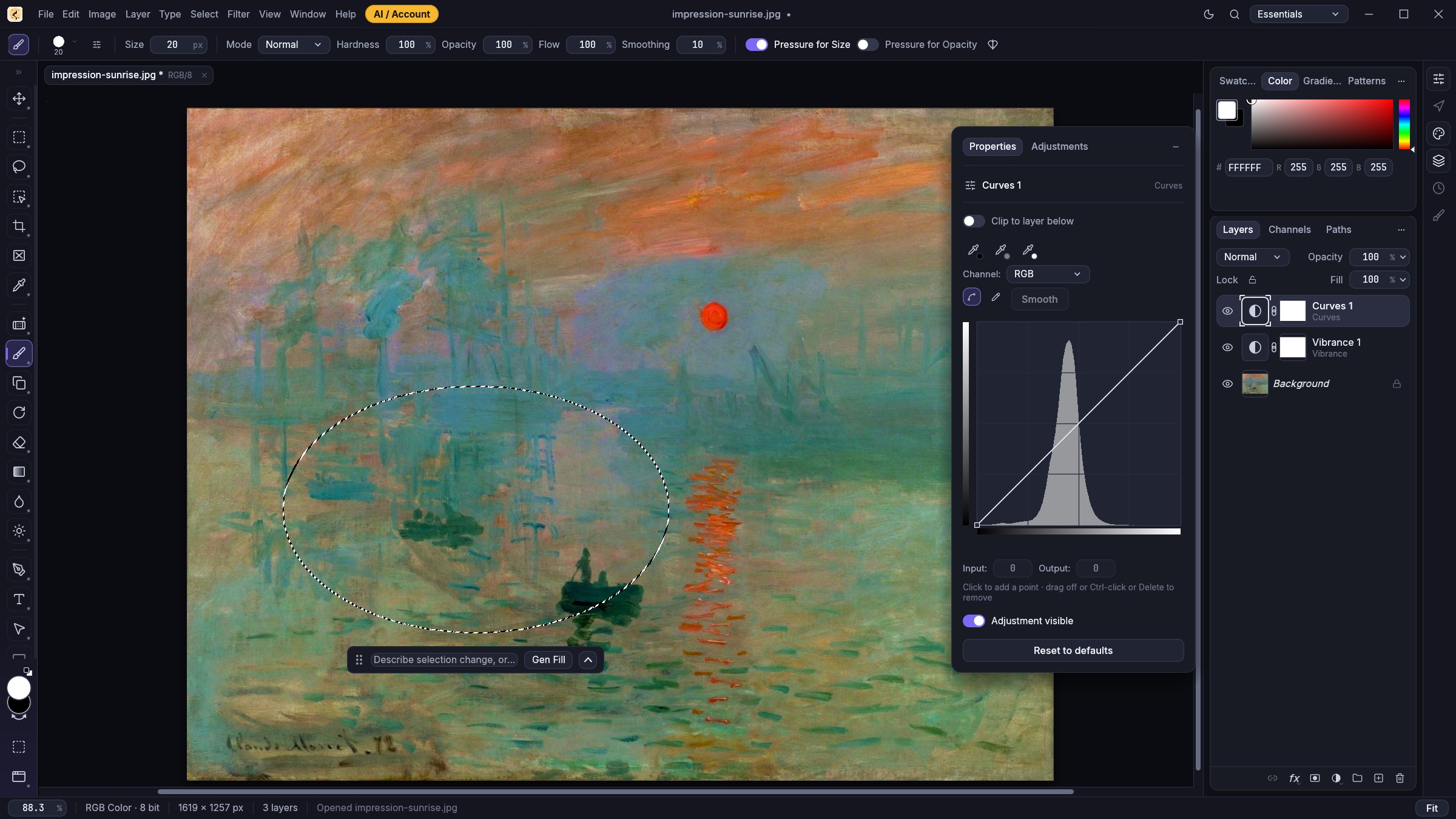
Current YoFan Studio Studio Light workspace showing the Lasso tool options bar with Select and Mask, an active elliptical selection on Claude Monet's Impression, Sunrise with the Floating Contextual Selection AI Bar, the floating Curves 1 RGB histogram card, and stacked Curves, Hue/Saturation, and Levels adjustment layers.
Studio (Light) theme: Active selection workflow with the Lasso tool (Select and Mask... options bar), Floating Contextual Selection AI Bar (Gen Fill), floating Curves 1 RGB histogram card, and stacked Curves 1, Hue/Saturation 1, and Levels 1 adjustment layers. Artwork: Claude Monet, Impression, Sunrise (1872, public domain).
02 · Optional Cloud AI Workflows

AI image tools inside the workspace

Switch seamlessly between Studio (Dark) and Studio (Light) themes, and open the integrated YoFan Studio · AI & Account window (via the top-bar AI / Account button) or use the floating canvas selection bar to run cloud-backed image tasks without exporting files to external web tools:

  • Text to Image: Generate new imagery from a text prompt and aspect ratio
  • Generative Fill: Fill or heal the active selection (or auto-heal when left blank)
  • Image to Image: Transform the current canvas or layer guided by a prompt
  • Expand Canvas (Outpaint): Extend canvas boundaries in chosen directions
  • Remove Background: Isolate foreground subjects into clean transparency
  • Restore / Denoise & Upscale: Clean up compression artifacts or increase resolution (2× / 4×)
  • Art Effects, Art Styles & Photo Transfer: Apply curated visual presets or transfer style and colour from a reference image
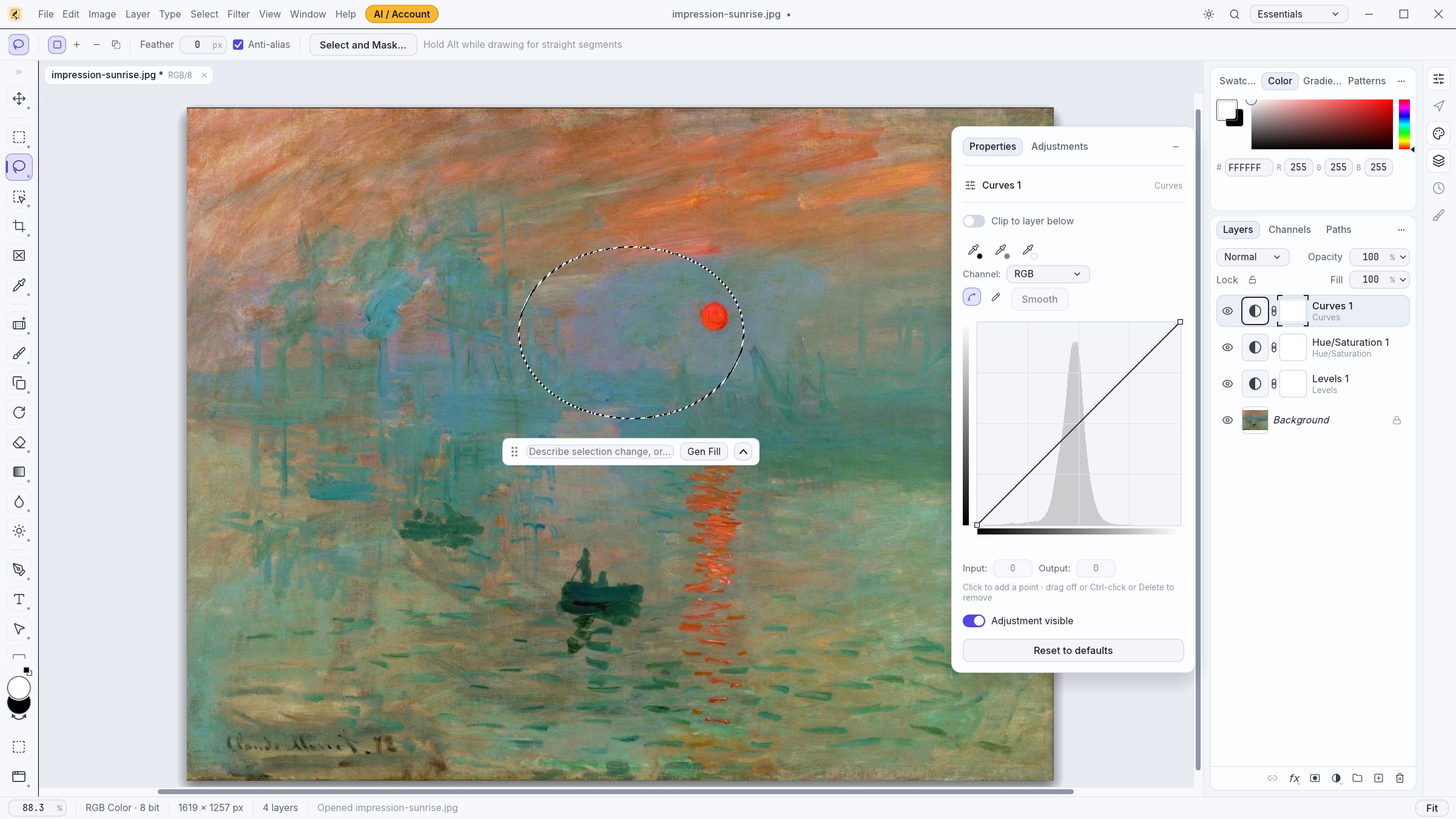
Current YoFan Studio Studio Light workspace editing Claude Monet's Impression, Sunrise with an active elliptical selection, the Floating Contextual Selection AI Bar, the floating Vibrance 1 card, and the YoFan Studio AI and Account window open on the AI Chat tab.
Studio (Light) theme: The YoFan Studio · AI & Account window (AI Chat tab) reading the active document context ("impression-sunrise.jpg" · 1619×1257 px · Active selection), with task intent pills (Auto, Text to Image, Gen Fill, Img to Img, Expand, Remove BG, Restore, Upscale) and Floating Selection Bar controls. Note: Live cloud model output depends on server/provider configuration; end-to-end provider output samples will be published after pre-launch acceptance.
03 · Non-Destructive Round-Trip

Keep editing your results

Cloud AI tasks are designed as part of a continuous editing pipeline rather than a final export step. When a cloud task completes, YoFan Studio brings the result right back into your workspace.

  • Insert generated or processed outputs as a new layer in the current document (`+ Layer`)
  • Or open the returned image as a new document tab (`New Doc`)
  • Continue masking, blending, retouching, and colour-grading with standard local tools
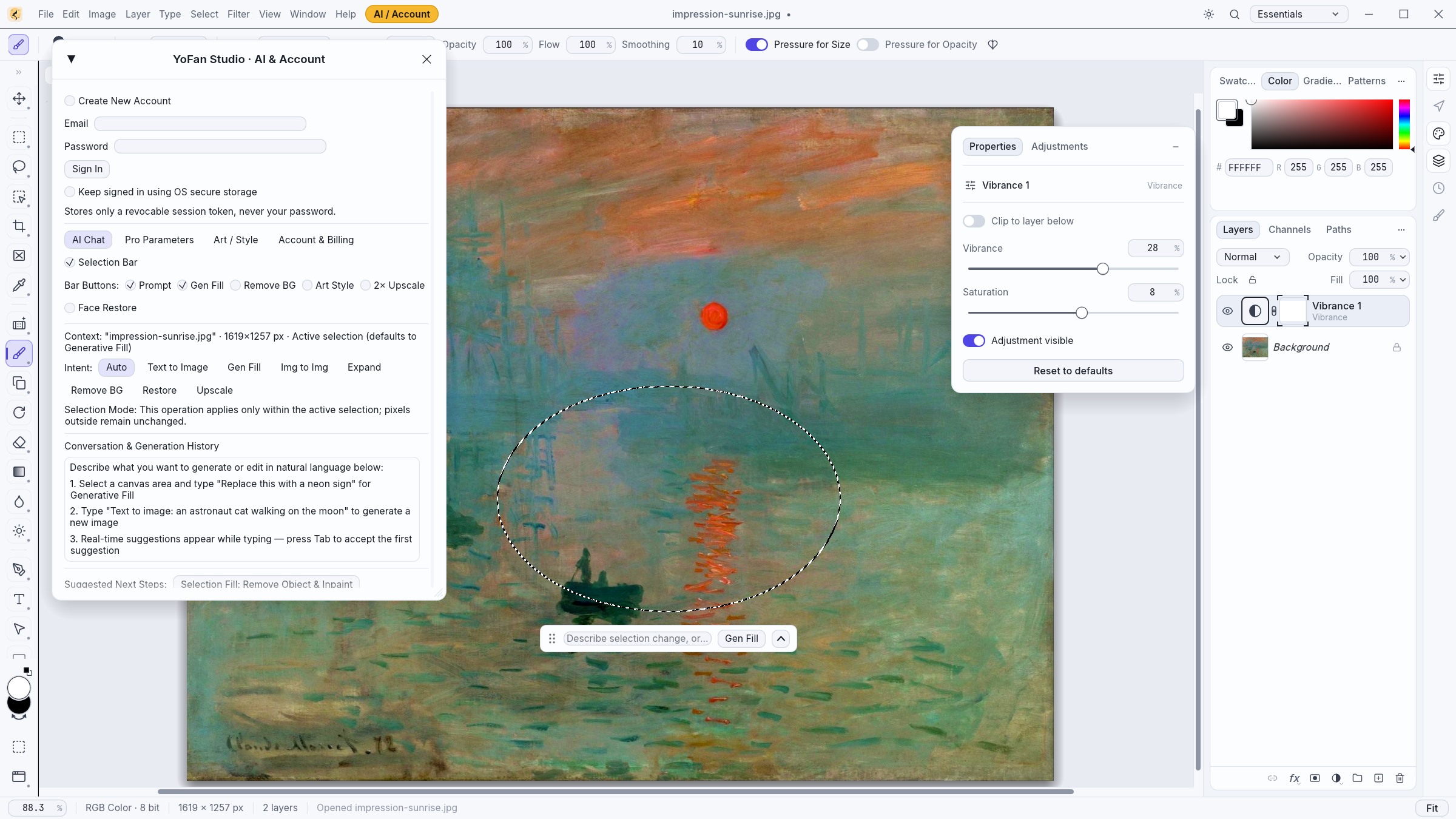
Current YoFan Studio Studio Dark workspace editing Claude Monet's Impression, Sunrise with the YoFan Studio AI and Account window open on the Art / Style tab alongside the active canvas and floating Vibrance 1 Properties card.
Studio (Dark) theme: The Art / Style tab (Art Effects, Art Styles, and Photo Transfer) open alongside Claude Monet's Impression, Sunrise and the floating Vibrance 1 Properties card, with direct output into a new layer or new document.
Workflow

How YoFan Studio works

A straightforward four-step workflow from opening an image to continuing your layered edit.

  1. Step 01

    Open or create a document

    Start a new canvas or open an existing image file locally on your desktop. Standard editing, layers, masks, and colour tools work immediately offline.

  2. Step 02

    Select an area or choose an AI tool

    Make a selection on the canvas to reveal the Floating Contextual Selection AI Bar, or click the top-bar AI / Account button to choose Text to Image, Generative Fill, Expand, Remove Background, Restore, Upscale, or Art/Style presets.

  3. Step 03

    Run the task with account credits

    Sign in inside the desktop app and submit the request. Cloud tasks use prepaid account credits, and the client polls task progress until the output image is ready.

  4. Step 04

    Continue editing on layers

    Import the returned result directly as a new layer in your active composition or as a separate document, then refine masks, blend modes, and colour adjustments.

Billing Model

Pricing & Credits

Transparent separation between local desktop tools and optional prepaid cloud AI usage.

Local Desktop Editing

Included in the desktop app

Core raster editing, layers, masks, selections, brushes, filters, and colour adjustments run on your local hardware and do not consume cloud credits.

  • No account required for local file editing
  • Non-destructive adjustment layers and masks
  • Local import, compositing, and export
Optional Cloud AI Credits

Prepaid credit packs

Cloud AI generation and processing tools use prepaid account credits. When you purchase a credit pack, credits are added to your YoFan Studio account balance and deducted only when you run a cloud AI task.

  • Account-based balance: Sign in with your email inside the desktop app (YoFan Studio · AI & Account → Account & Billing tab) to view your current credit balance, order history, and credit ledger.
  • In-software use only, non-transferable, no cash value: Credits are valid solely for use inside YoFan Studio to execute supported cloud AI image tasks. Credits are non-transferable between accounts or users, carry no cash or monetary value, and cannot be redeemed or exchanged for cash.
  • Failed-task protection: If a cloud generation task fails at the provider level, held or deducted credits for that failed task are automatically released back to your account balance.
  • Checkout integration: Web checkout is designed to open from the desktop app via our payment partner once commercial onboarding is complete.
Pre-release notice: Final credit pack tiers, regional tax handling, and per-task credit rates will be published on this page before commercial checkout is enabled.
Questions & Answers

Frequently Asked Questions

What is YoFan Studio?

YoFan Studio is a native desktop image editor written in Rust. It provides layer-based photo editing, selections, masks, and colour adjustments alongside optional cloud-powered AI image generation and restoration tools.

Do I need an account to use basic editing tools?

No. Local editing tools—including layers, masks, selections, brushes, and colour adjustments—run directly on your computer without signing in. An account is only required if you choose to purchase and use cloud AI credits.

What requires credits?

Cloud-processed AI tasks—such as Text to Image, Generative Fill, Image to Image, Expand Canvas, Remove Background, Restore/Denoise, Upscale, and cloud Art/Style transfers—require prepaid account credits.

How are YoFan Studio and YoFan Studio related?

YoFan Studio is the native desktop image editor application, while YoFan Studio (YoFan Studio · AI & Account, hosted under yofan52.com) is the studio brand and integrated cloud service module that powers account sign-in, prepaid credit balances, and cloud AI image tasks inside YoFan Studio. Final merchant and billing display naming will be aligned across the website and client prior to live checkout launch.

Are credits transferable or redeemable for cash?

No. Prepaid AI credits are solely for use inside YoFan Studio to run supported cloud AI image operations. Credits are non-transferable between accounts, cannot be resold or gifted, have no cash value, and cannot be redeemed or exchanged for cash.

Where do AI results go?

Completed AI results are downloaded directly into the YoFan Studio desktop app, where you can insert them as a new layer inside your current document or open them as a new document tab.

What happens if an AI task fails?

If a submitted cloud task fails during processing, the gateway automatically refunds/releases the credits reserved for that task back to your account ledger.

Is checkout live yet?

Not yet. YoFan Studio is currently in pre-release review. Public credit pack prices, customer support email, and live checkout will be activated only after merchant verification and final policy publication are completed.

Support & Inquiries

Contact

Dedicated customer support and billing contact channels for YoFan Studio are being finalized prior to public checkout activation.

Before commercial launch, a verified support email address and response-time commitment will be published in this section and in the account billing panel.